
Introduction
Apollo.io is like a smart assistant for sales teams. It helps you quickly find the right people to talk to by giving you verified prospects, their contact details, and company details all in one place. Instead of spending hours digging around for Leads, Sales and Marketing teams can jump straight into conversations that matter.
On the other hands, Salesforce is a Customer Relationship Management (CRM) system used to store, manage, and track customer data such as leads, accounts, contacts, and opportunities. It helps businesses organize their sales process and manage customer relationships efficiently.
When you connect Apollo with Salesforce, the magic really happens. The prospects you discover in Apollo flow directly into Salesforce as leads or contacts. That means no more copy and pasting or manual data entry. Your CRM stays up to date automatically, and your team can spend more time selling instead of managing spreadsheets.
Together, Apollo and Salesforce create a smooth, powerful workflow like Apollo finds the right people, and Salesforce helps you build and manage those relationships. It’s a combination that makes sales faster, smarter, and a lot less stressful.
Why We Integrate Apollo with Salesforce
- Leads go in automatically: No need to add them by hand.
- No copy-paste work: Details move over on their own.
- Sales get faster: Reps spend more time talking to customers.
- Data stays correct: Less chance of mistakes.
- One place to work: Sales reps use Salesforce without switching tools.
Prerequisites
Before integration, make sure you have:
Apollo Login Credentials
Step 1: Login To Apollo
First you need to Sign up using with your Email, Sign up with Google or Sign up with Microsoft.
(Apollo.io sign-up screen, choose Email, Google, or Microsoft to create your account)
After you complete the sign-up process, you are redirected to the, Apollo.io dashboard,where the main page layout becomes visible. This is the central workspace from which you can access all Apollo features
(The Apollo.io dashboard, your central workspace for prospects, sequences, and integrations)
Open Integrations in Apollo
- Click Admin Setting.
- Then, Click Integrations.
(In Apollo, click Admin Settings → Integrations to access the integrations panel)
Connecting Apollo to Salesforce
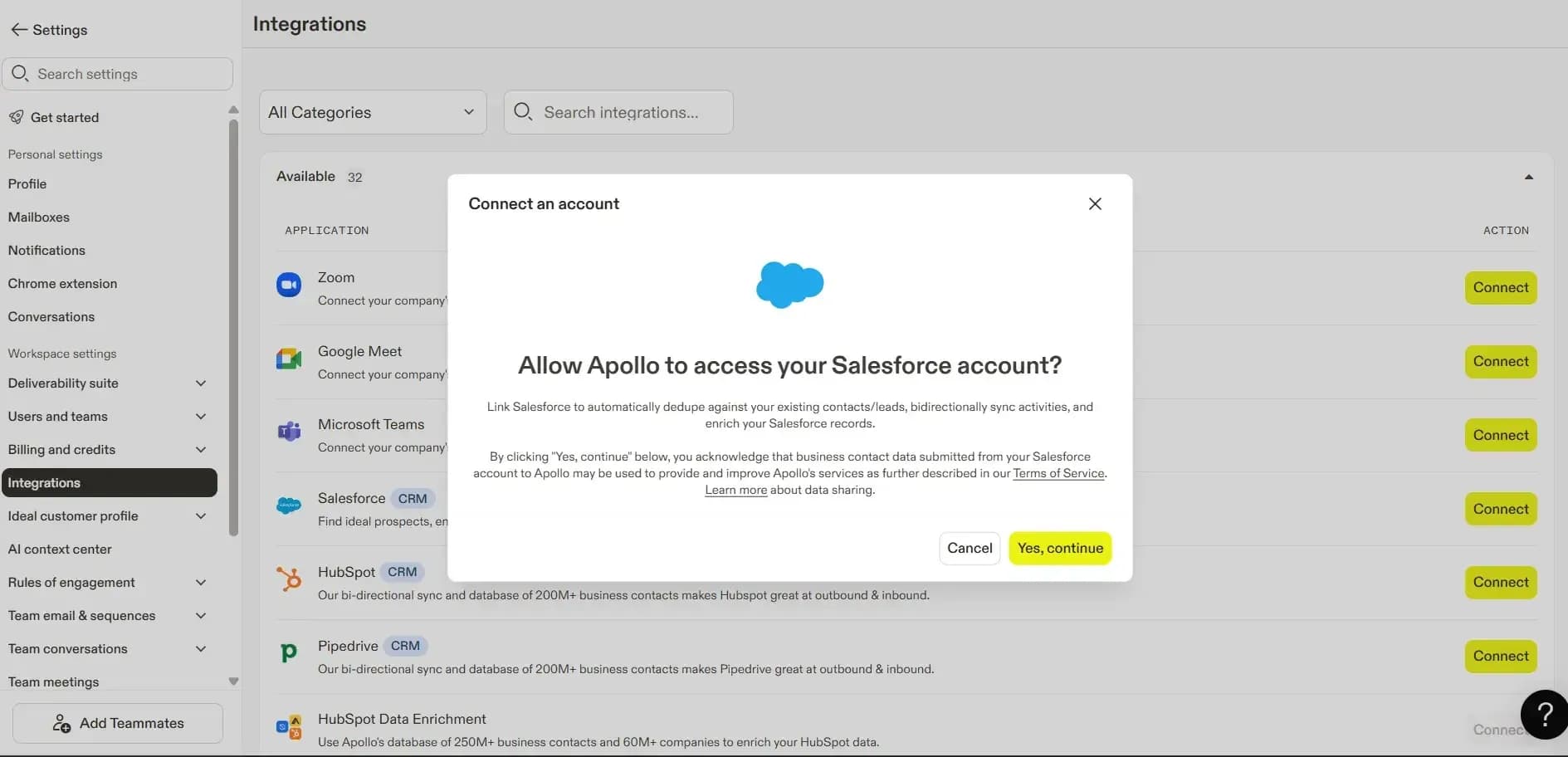
Preparing for Integration
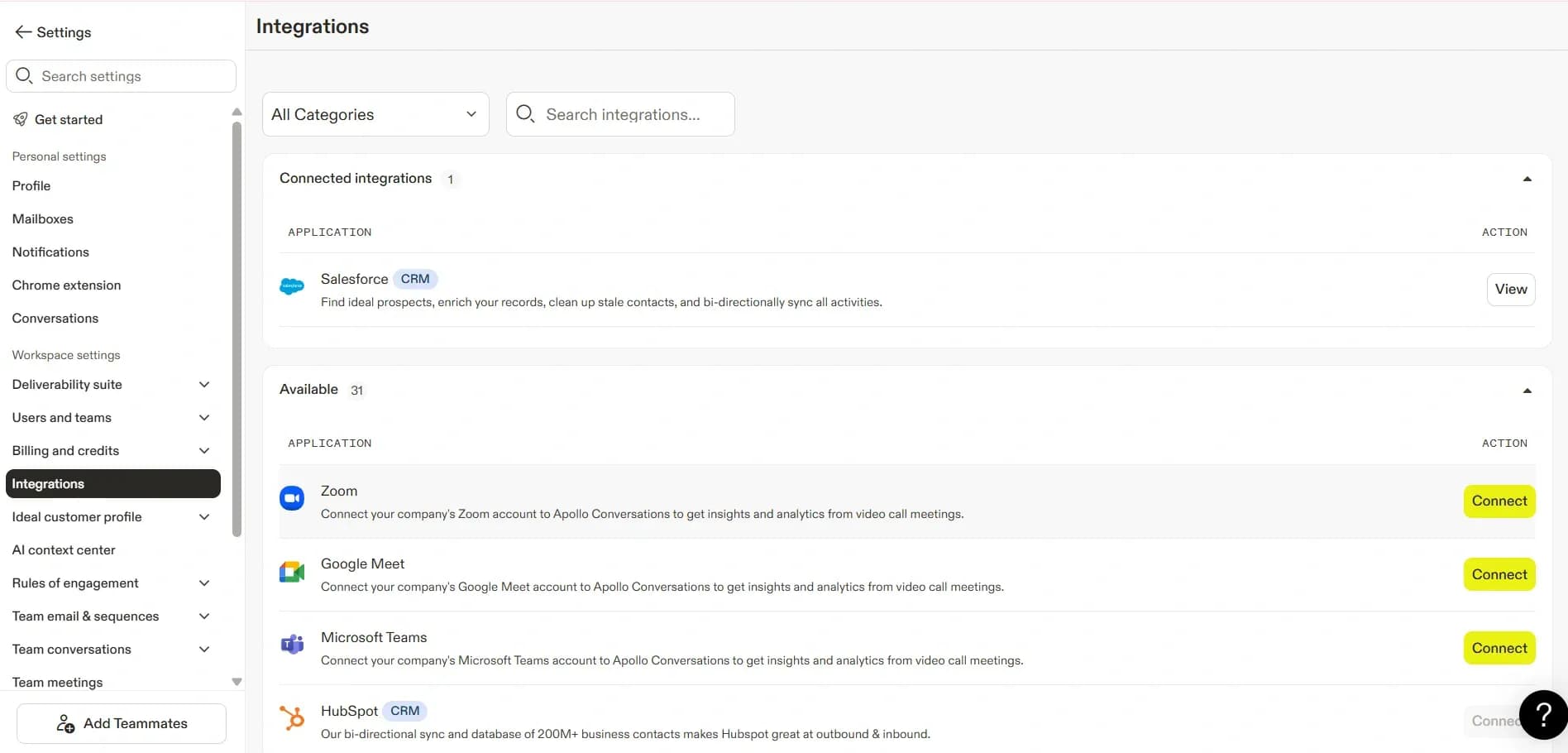
Before initiating the integration, ensure that all prerequisites and system requirements are met to avoid compatibility issues and guarantee a seamless setup process.
Steps to Connect Apollo to Salesforce Account
Free newsletter
Get Salesforce insights delivered weekly
Join 500+ Salesforce professionals and stay ahead of the curve.
No spam. Unsubscribe any time.
Step 1: Verify Basic Access
Before proceeding, confirm that you possess admin access to both Apollo and Salesforce, check that your Salesforce version is compatible with third-party applications, and ensure you have a reliable internet connection along with a suitable browser.
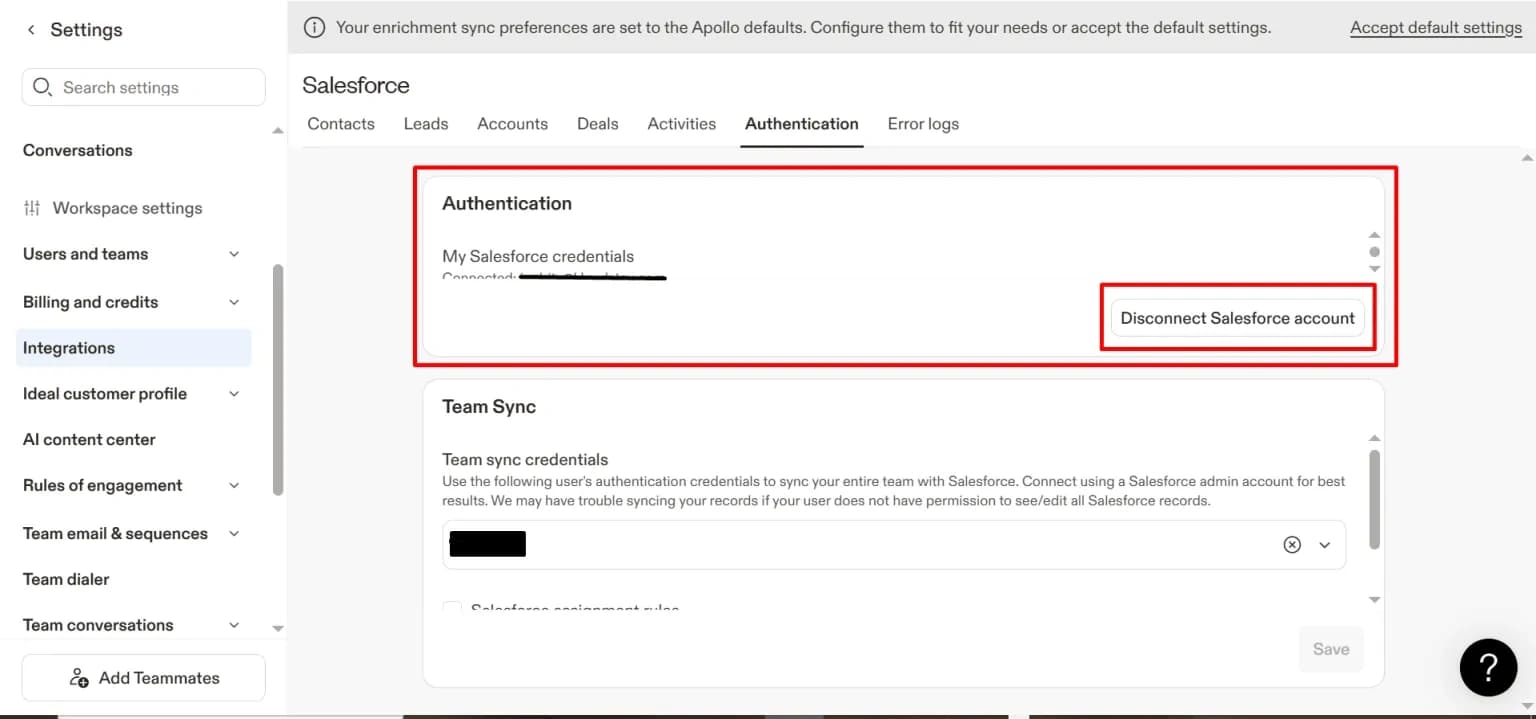
Step 2: System Configuration
The setup wizard will guide you through the process of connecting both systems, necessitating the entry of required credentials and adjustments to specific settings to align with your workflow. Additionally, you should determine the objects you wish to synchronize.
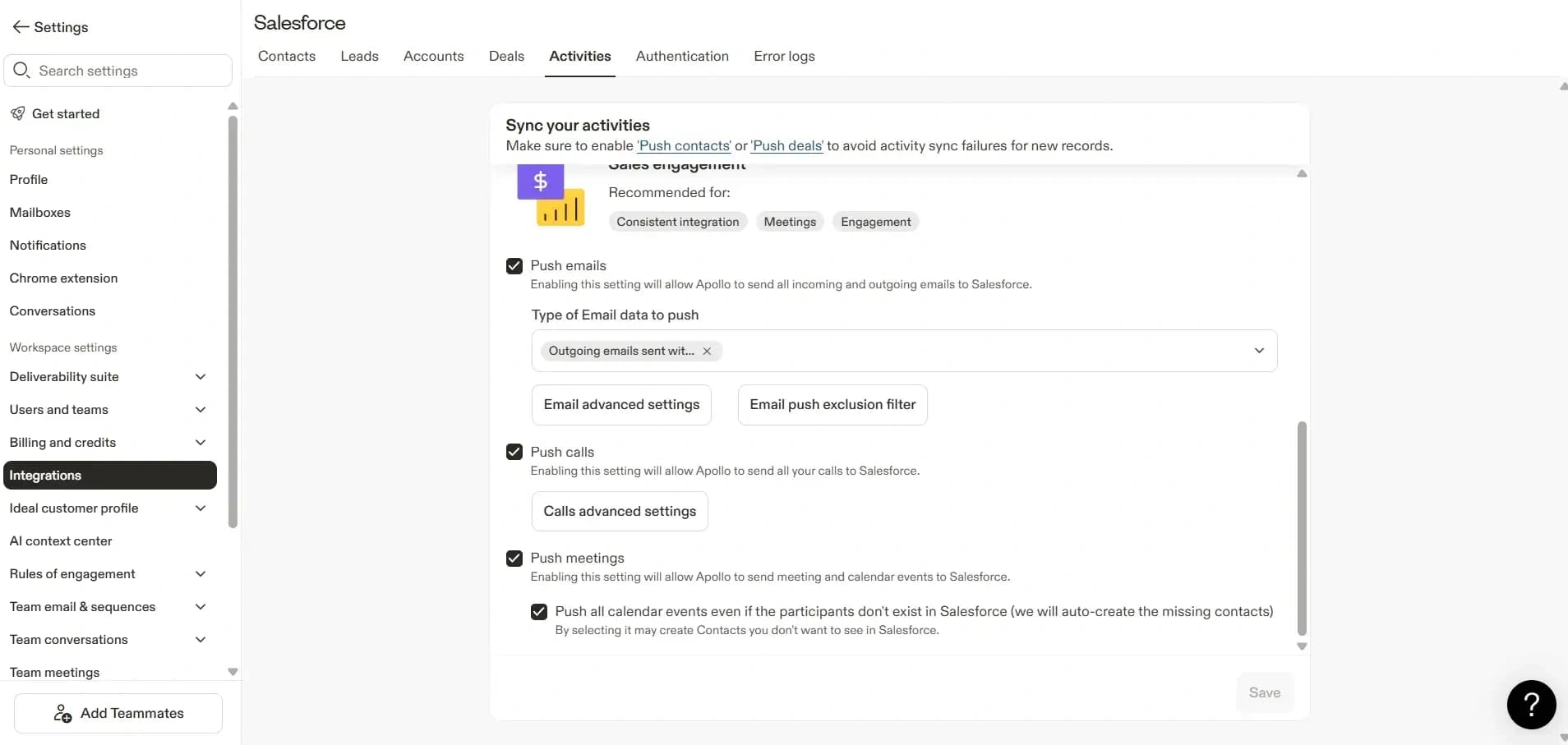
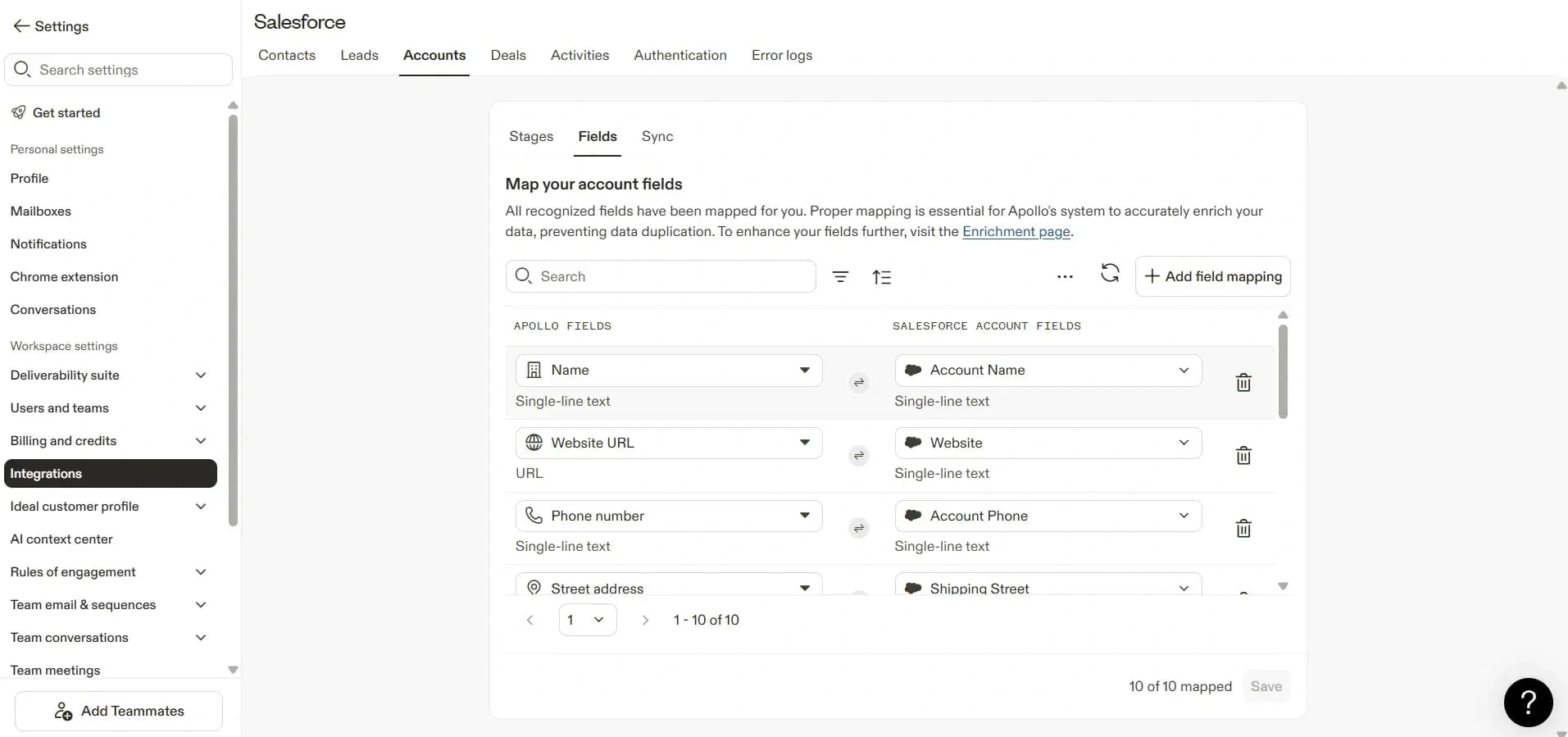
Step 3: Field Mapping and Information Synchronization
At this critical juncture, it is essential to verify that fields are correctly mapped. Ensure that the data from Apollo corresponds with the appropriate fields in Salesforce, clearly specifying the synchronization parameters, such as the update frequency and whether they should modify existing records or generate new ones.
Conduct multiple test synchronizations to ensure that all functions are as intended, and examine the logs for any possible issues that might arise.
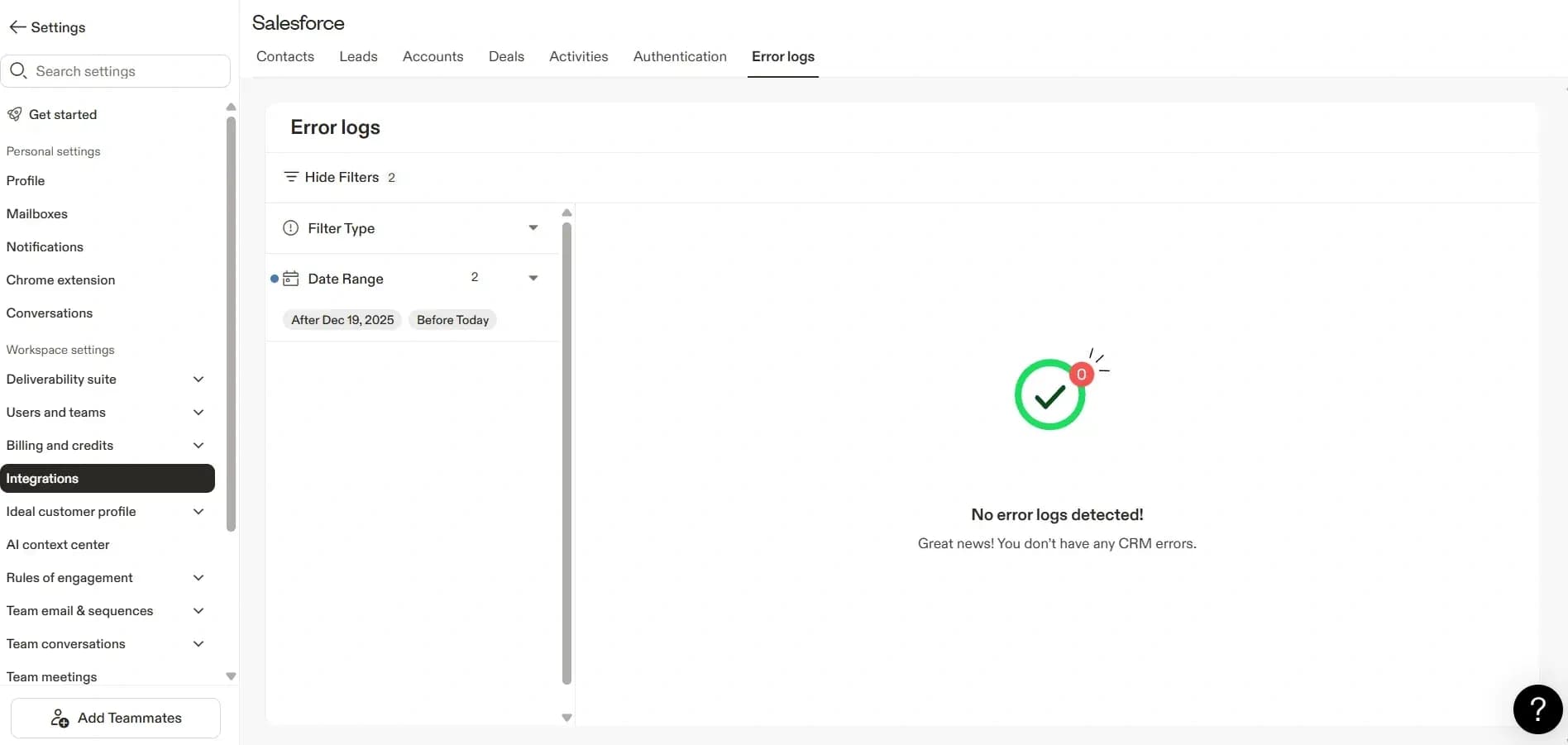
Step 4: Examine Error Logs
Consistently monitor the error logs located in the Apollo Connector settings in Salesforce, as problems like missing data or permission errors can occur. If you find any inconsistencies, implement the required changes and try the process once more; occasionally, merely refreshing the page can fix minor issues.
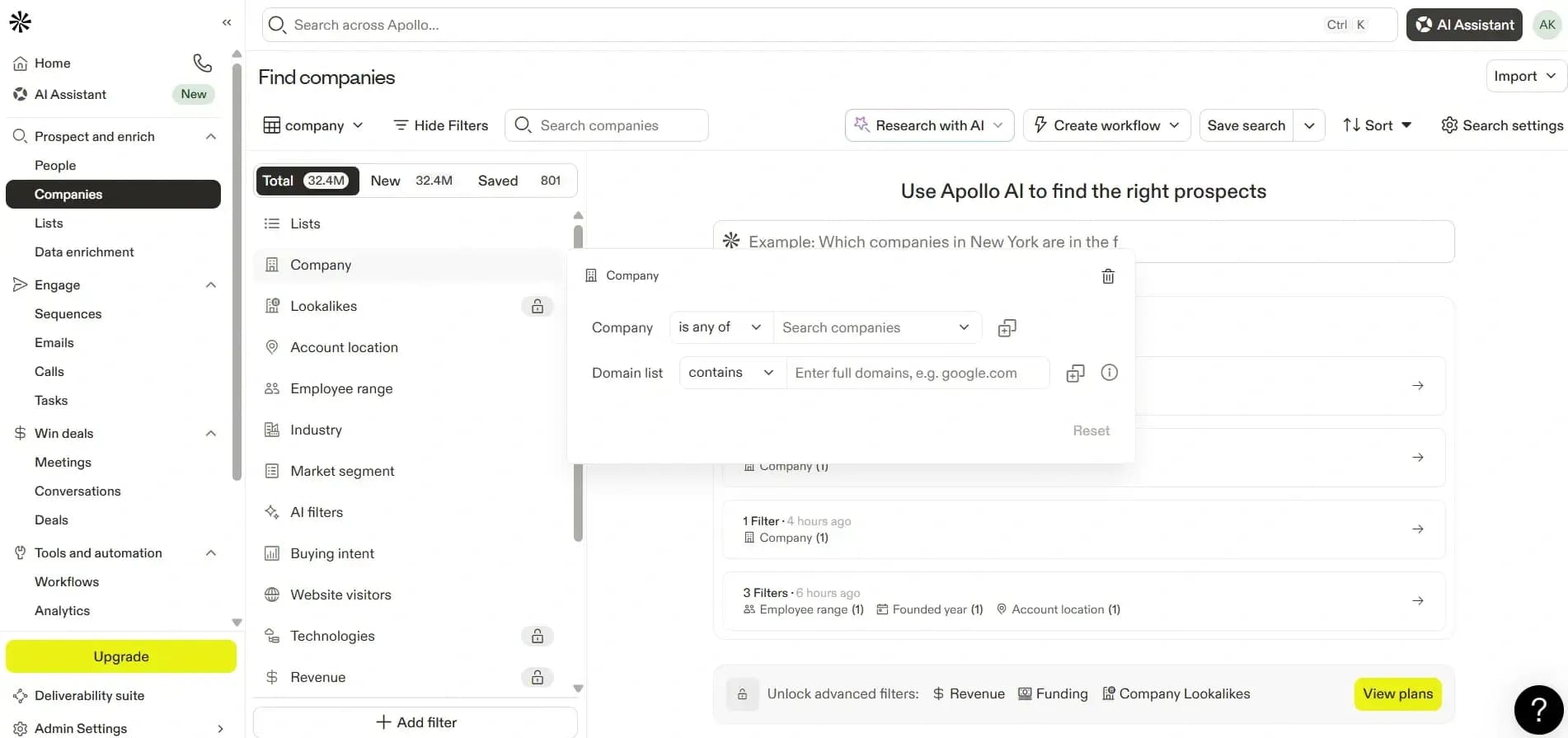
Automatic Account Sync from Apollo to Salesforce
First, click on Companies. Then, Enter the company name in the provided field and fill the required details.
After filling in the details, click on the company name that you entered in the Name field. Then, you will be able to see the company details.
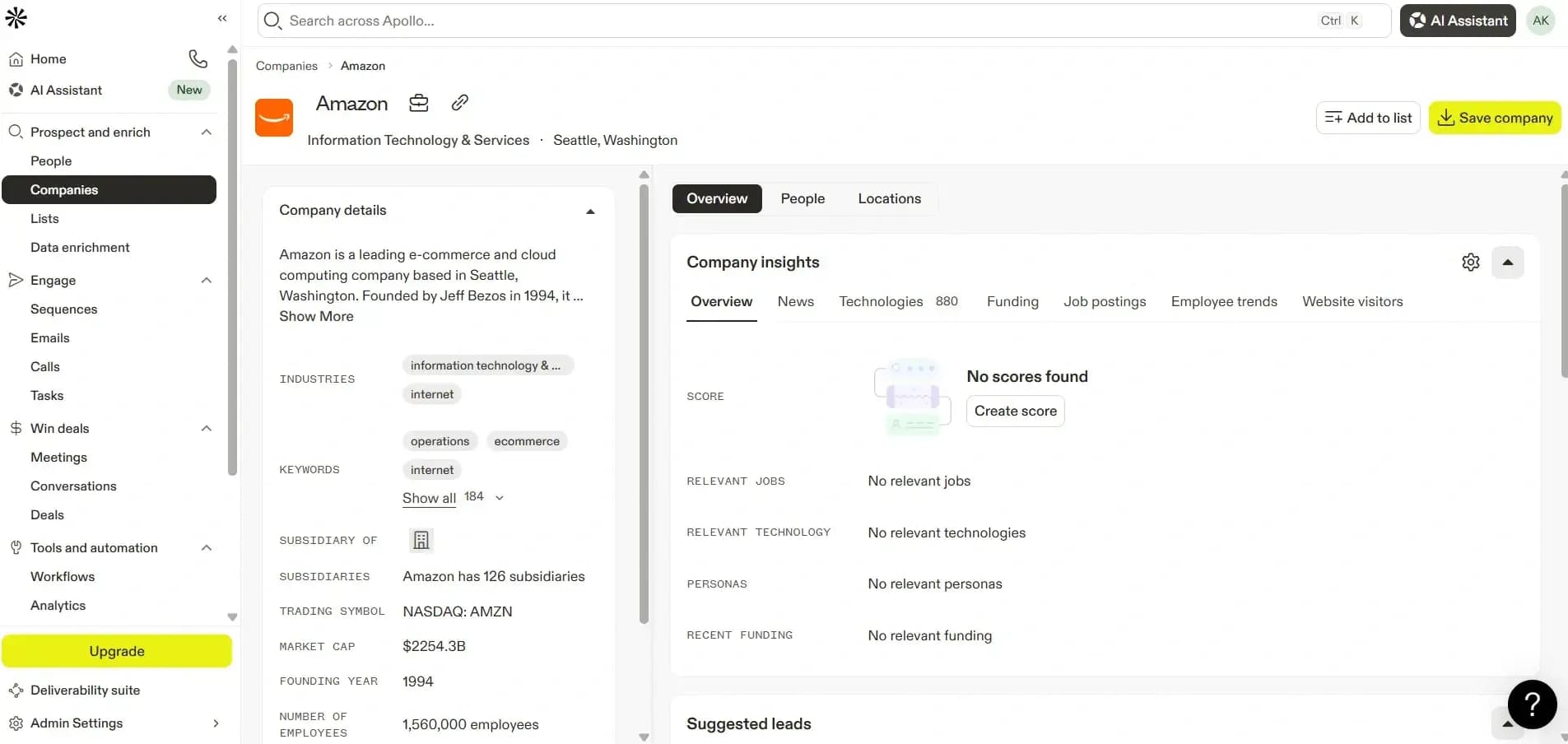
Click the Save Company button at top-right to the save company.
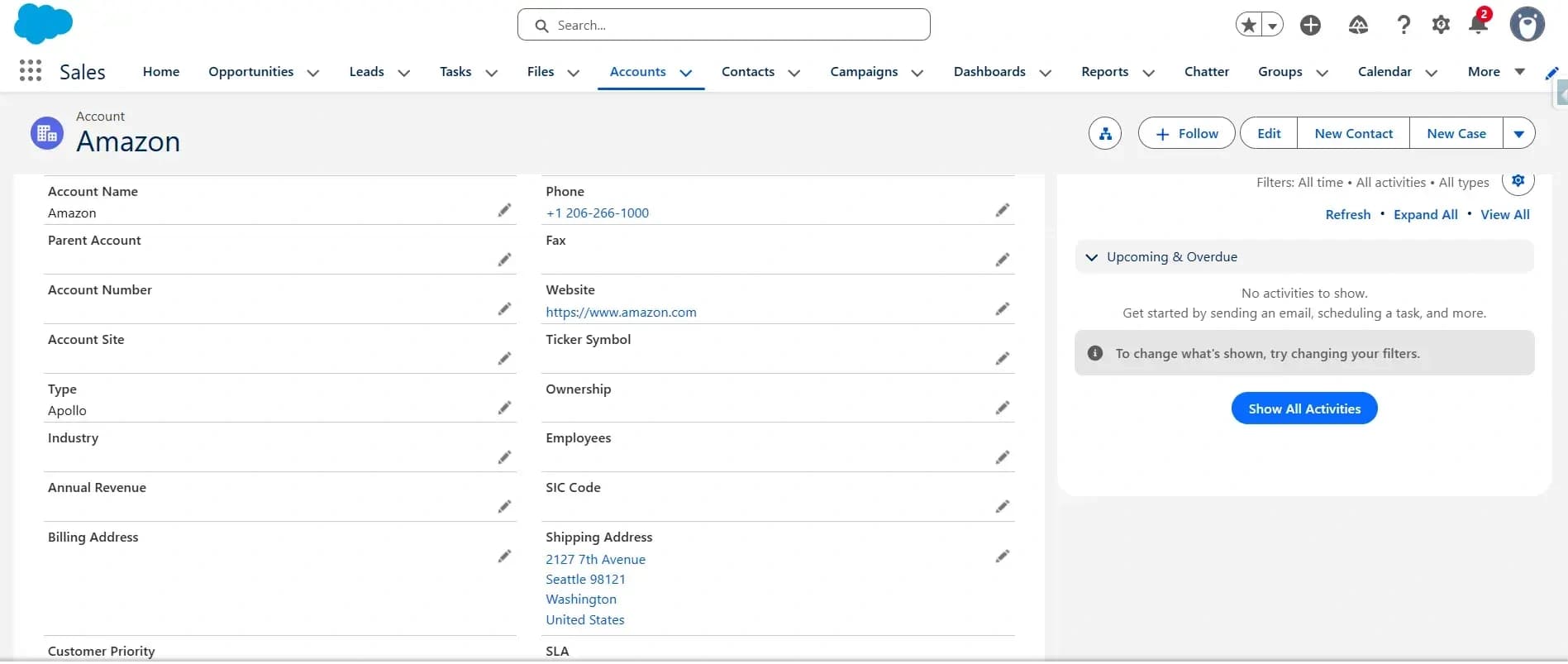
After clicking the Save Company button, the Account record is automatically saved in Salesforce.
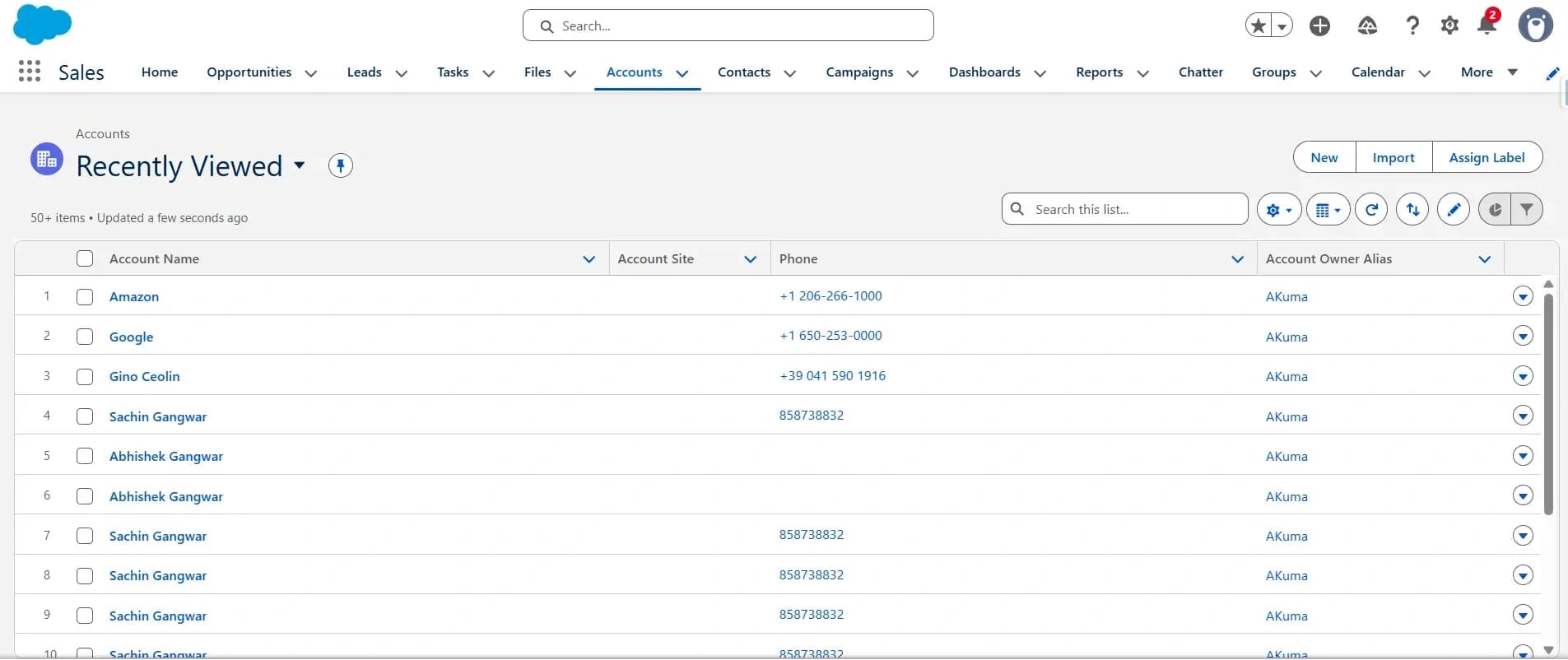
Click on the Amazon record on the Account object in your Salesforce Org. You will then see the detail page, where the value of the Type field is set to Apollo.
Conclusion
Integrating Apollo with Salesforce isn’t just a technical task; it’s a strategic move to supercharge your sales pipeline with better data, fewer silos, and more intelligent workflows.
By carefully following the steps outlined, verifying access, configuring systems, mapping fields, and reviewing logs, you’ll set the foundation for a robust, error-free integration that unlocks real-time prospect insights inside Salesforce.
Related Articles
Ready to implement? Learn more about our Agentforce Implementation Services.
