

To integrate AWS S3 with Salesforce Data Cloud for Agentforce, you connect the S3 bucket through Data Cloud's Amazon S3 connector, ingest your CSV file with a Data Stream, map it to a custom Data Model Object, and expose it to an agent through an autolaunched Flow action. The result is an Agentforce agent that answers customer questions using product data stored in your S3 bucket. Let's start with the following steps:
Create AWS S3 Bucket
-
Login your AWS Account
-
Search for Amazon S3 and click on this
-
Click on Create bucket
-
Enter the Bucket name. In my case bucket name is my-agentforce-bucket (Name must be unique)
-
To save click on Create bucket at the bottom
-
Go to inside bucket my-agentforce-bucket
-
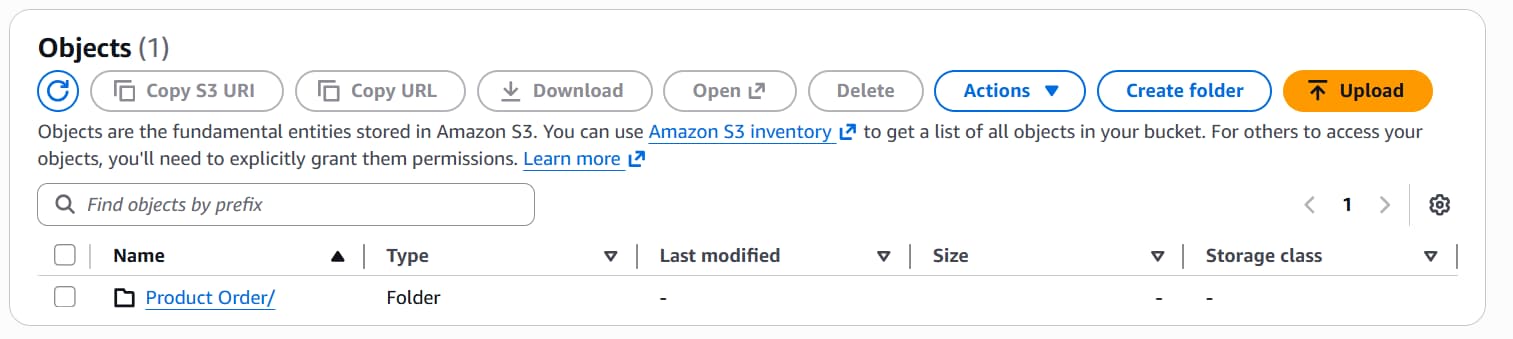
Click on Create folder and Give folder name Product Order/
-
Go to inside Product Order/ folder and Click on Upload and Select you your own csv file to upload.


-
After doing this. You have to create AWS access key and AWS secret access key to connect with salesforce
-
Click on your profile and go to Security credentials
-
Click on Create access key (Note: If you have already use that)
-
Select Third-party service option.
-
Click on Next
-
Now you will get access key. Copy the access key and keep it safe place.
Create Other Connectors
- Go to Data Cloud Setup from Gear icon
- Search for Other Connectors in Quick Find Box
- Select Other Connectors and Click on New
- Select Amazon S3 connctor type
- Enter inforamtion like below image
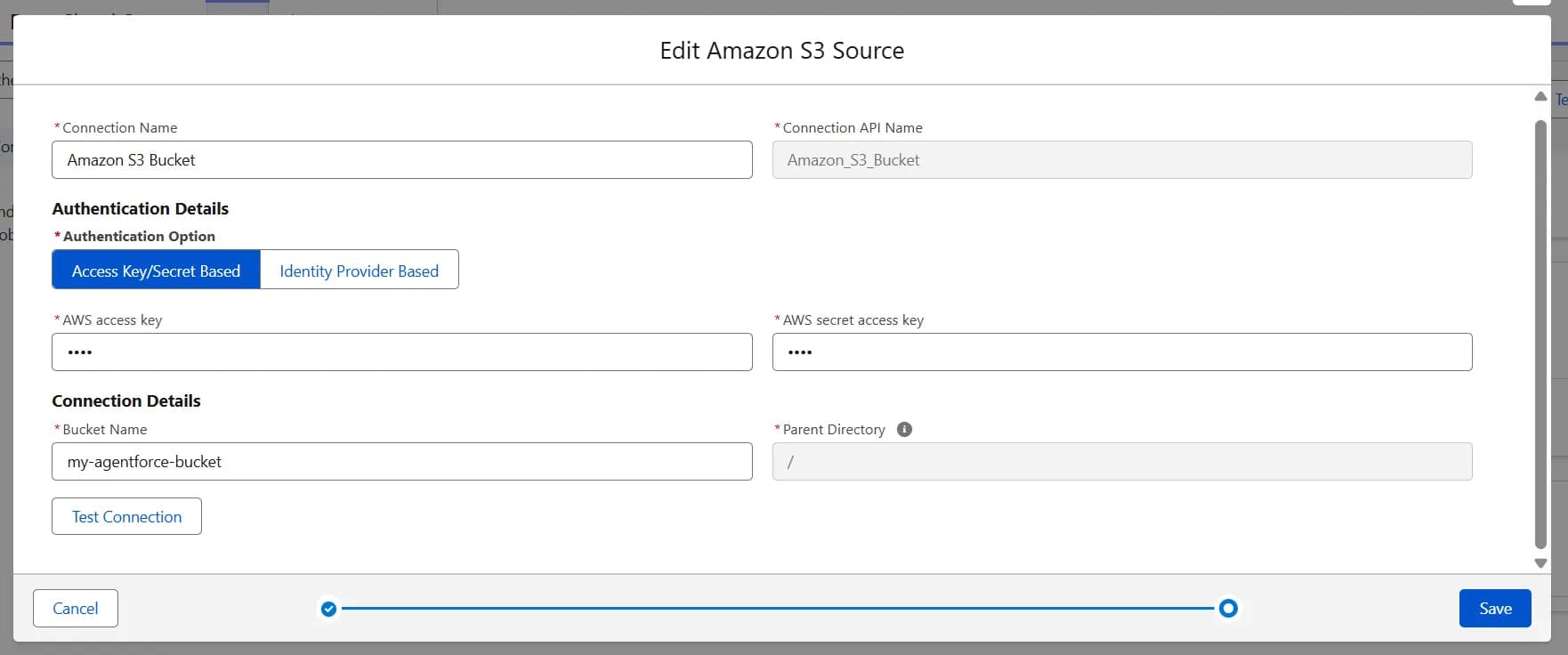
- Before save click on Test Connection
- Click on Save
- Now its look like this:

Create Data Stream
- Go to Data Stream tab in Data Cloud App
- Click on New
- Select Amazon S3 from Other Sources.
- Click on Next
- Enter the following detail as mentioned in image
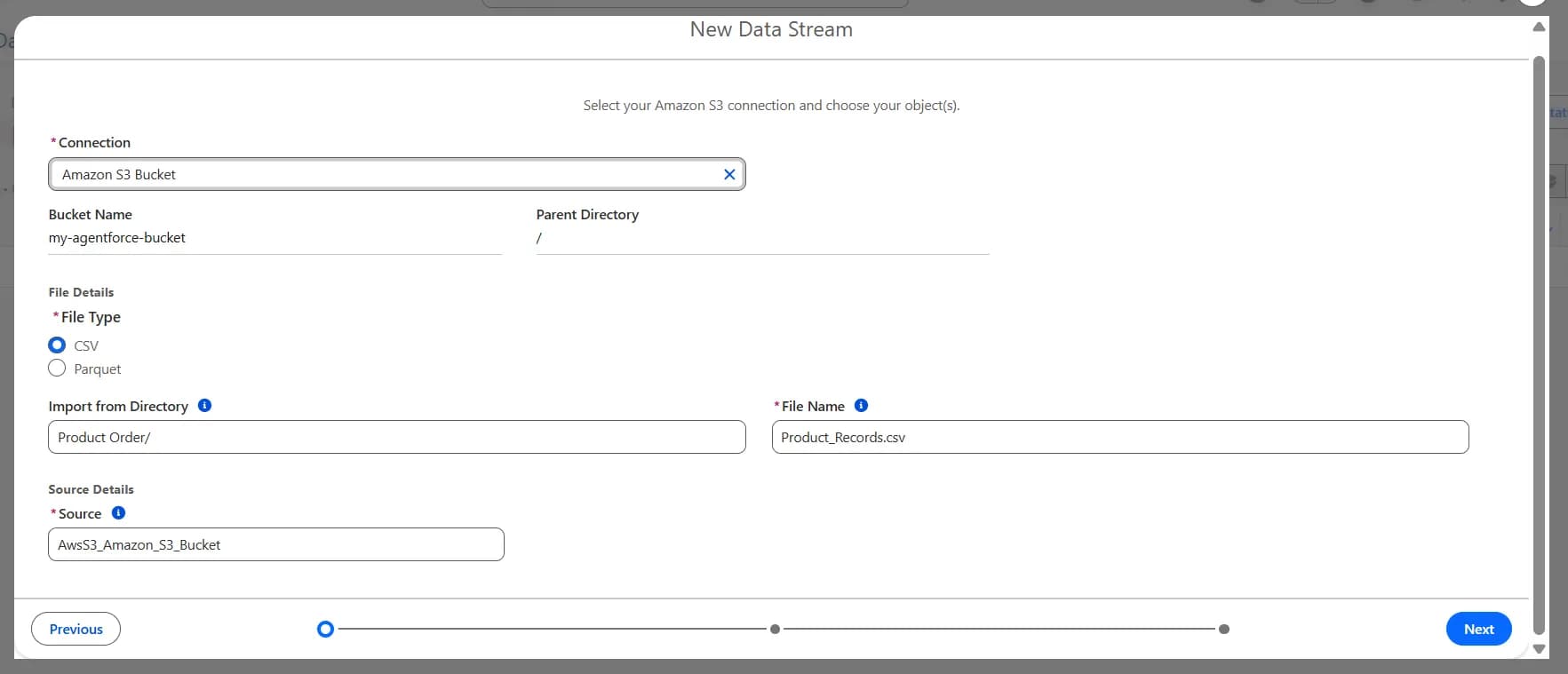
- Click on Next
- Click on Properties tab and select Other option
- Select products_id as Primary Key
- Click on Next
- Enter the following details as mentioned in image
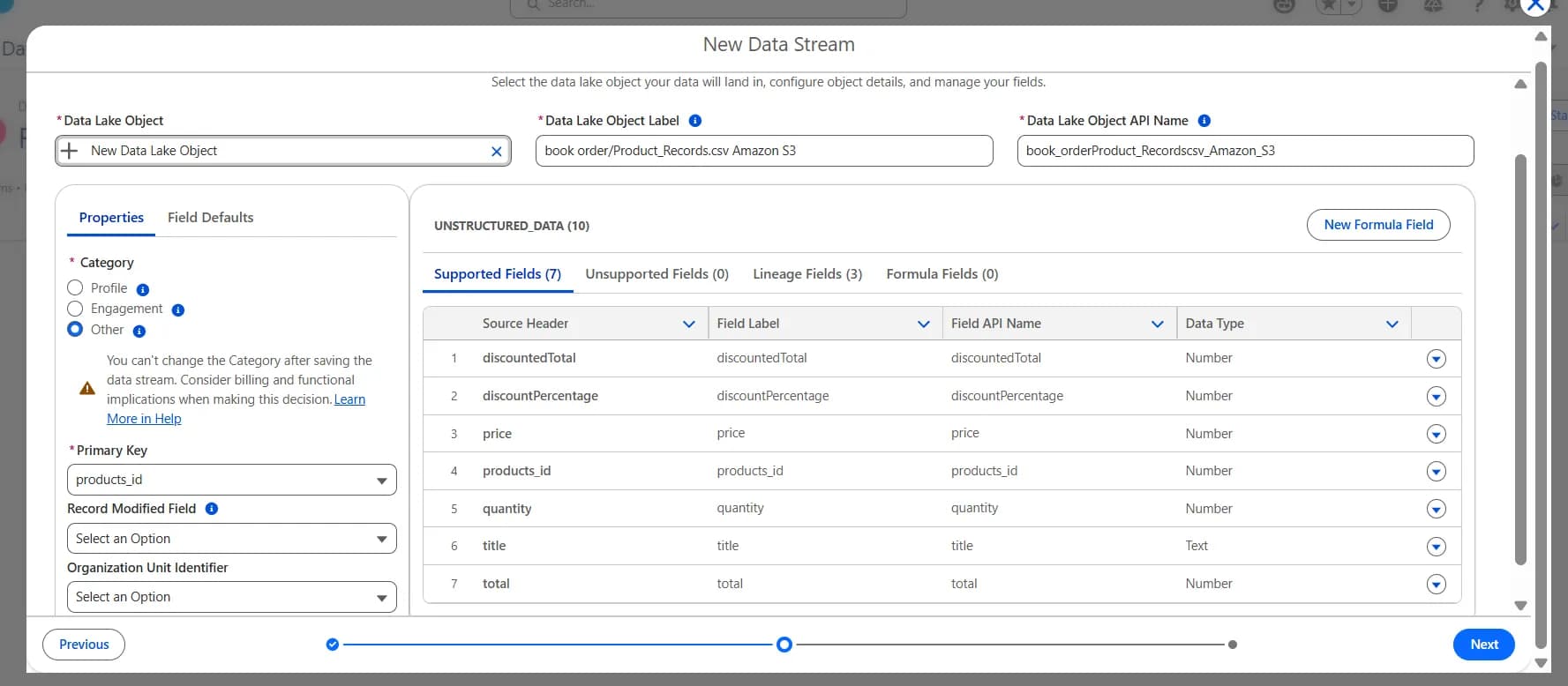
- Click on Next
- Entere the following details as mentioned in image
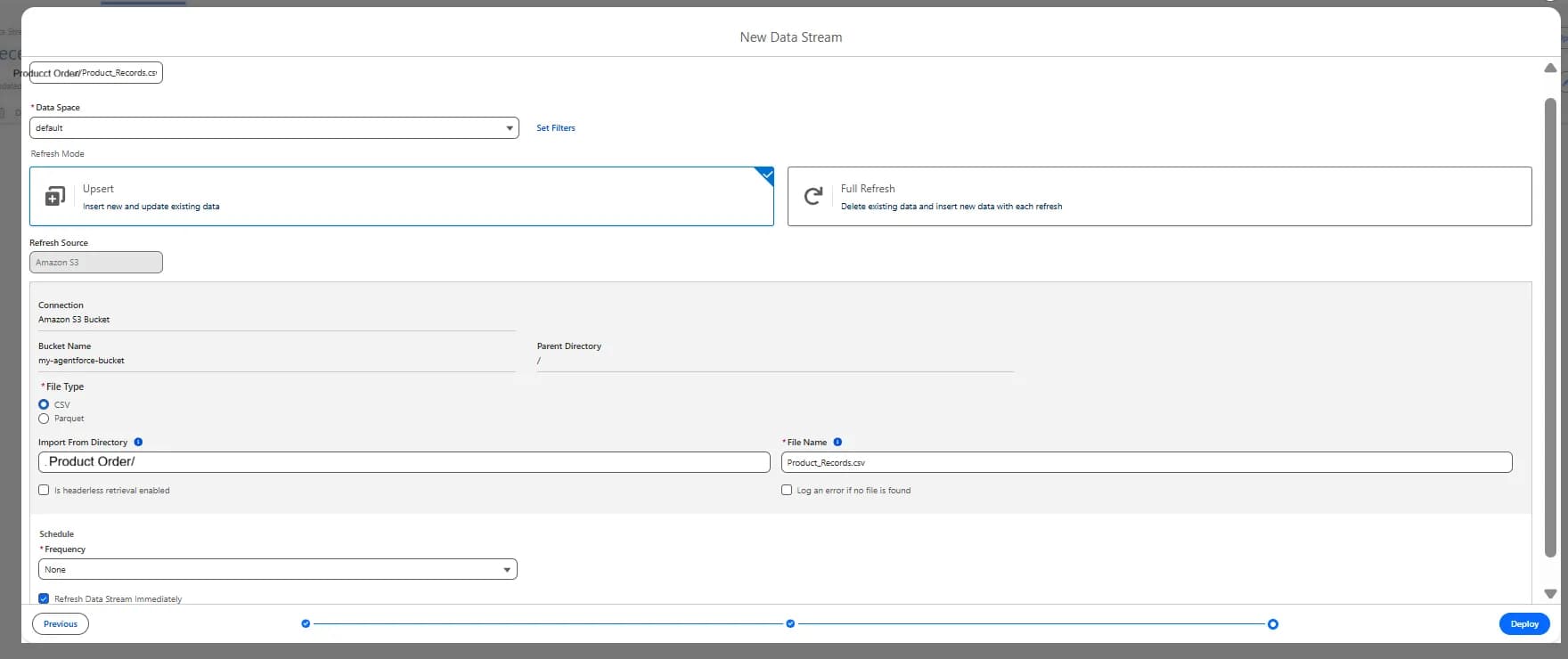
- Click on Deploy
- After Deploy Check that Last Run Status must be success
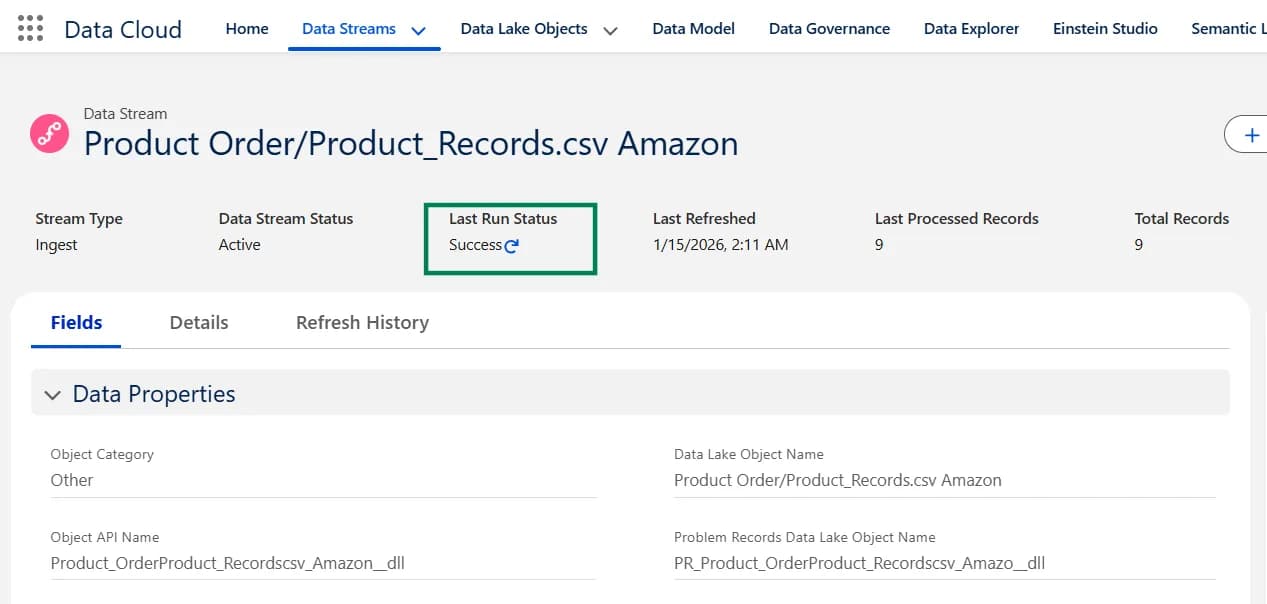
How Do You Check That the Data Lake Object (DLO) Was Created?
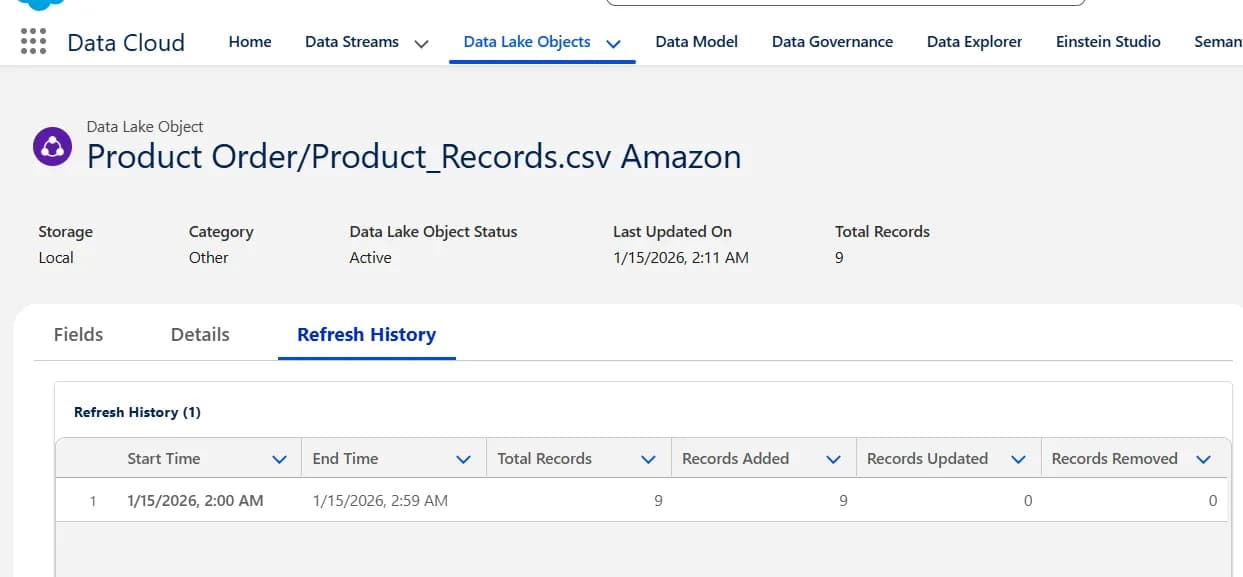
- Go Data Lake Objects tab.
- Select All Data Lake Object from list views
- Click Product Order/Product_Records.csv Amazon from table. which is category is Other
Create Data Modal Object (DMO)
- Click on Data Lake Objects tab
- Click on Start button in the Data Mapping section on the right side.
- Click on Custom Data Modal tab and click on New Custom Object
- Enter the Shopping Product in the Object Label field
- Than its should like below as mentioned in image.
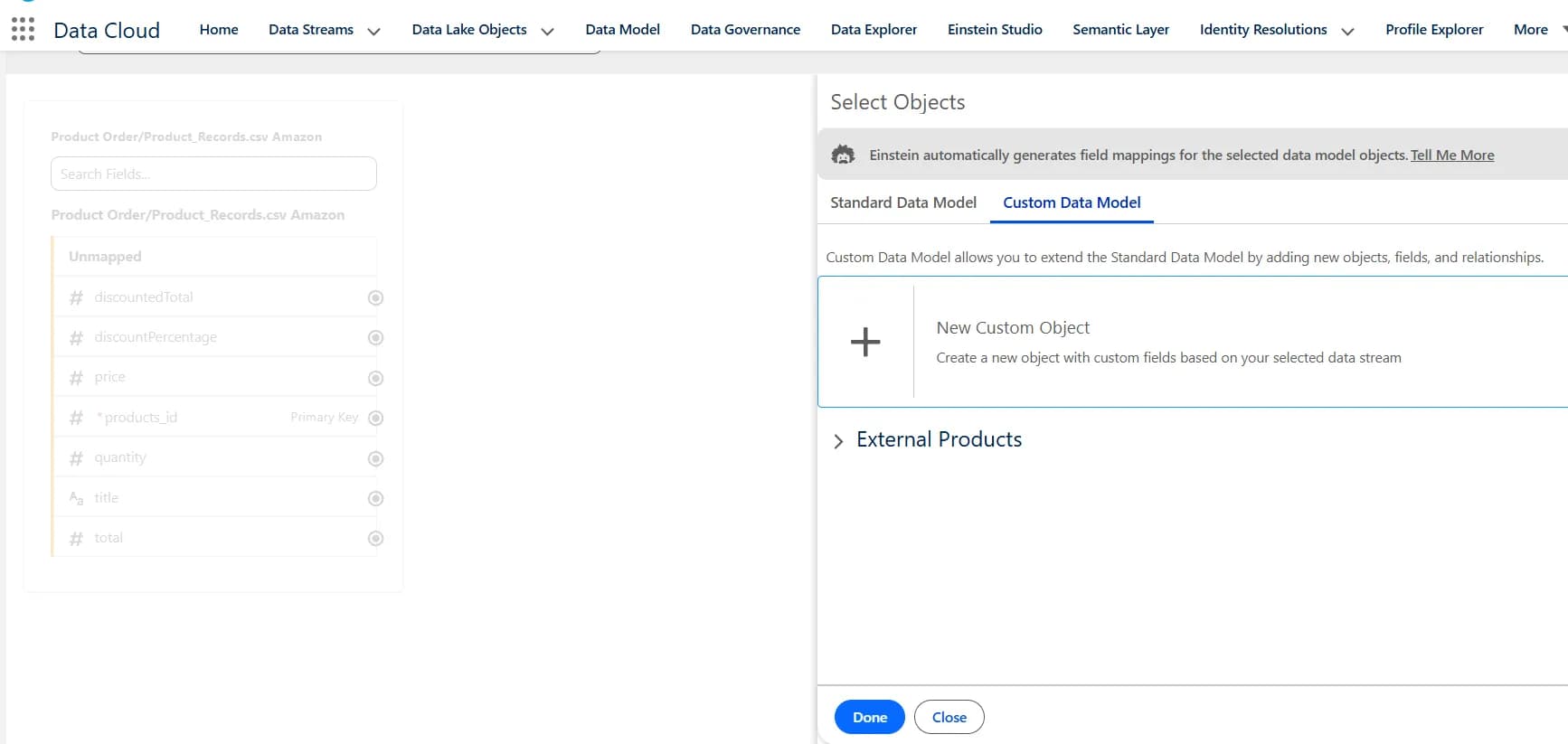
- Object Label: Shopping Product
- Object API Name: Shopping_Product
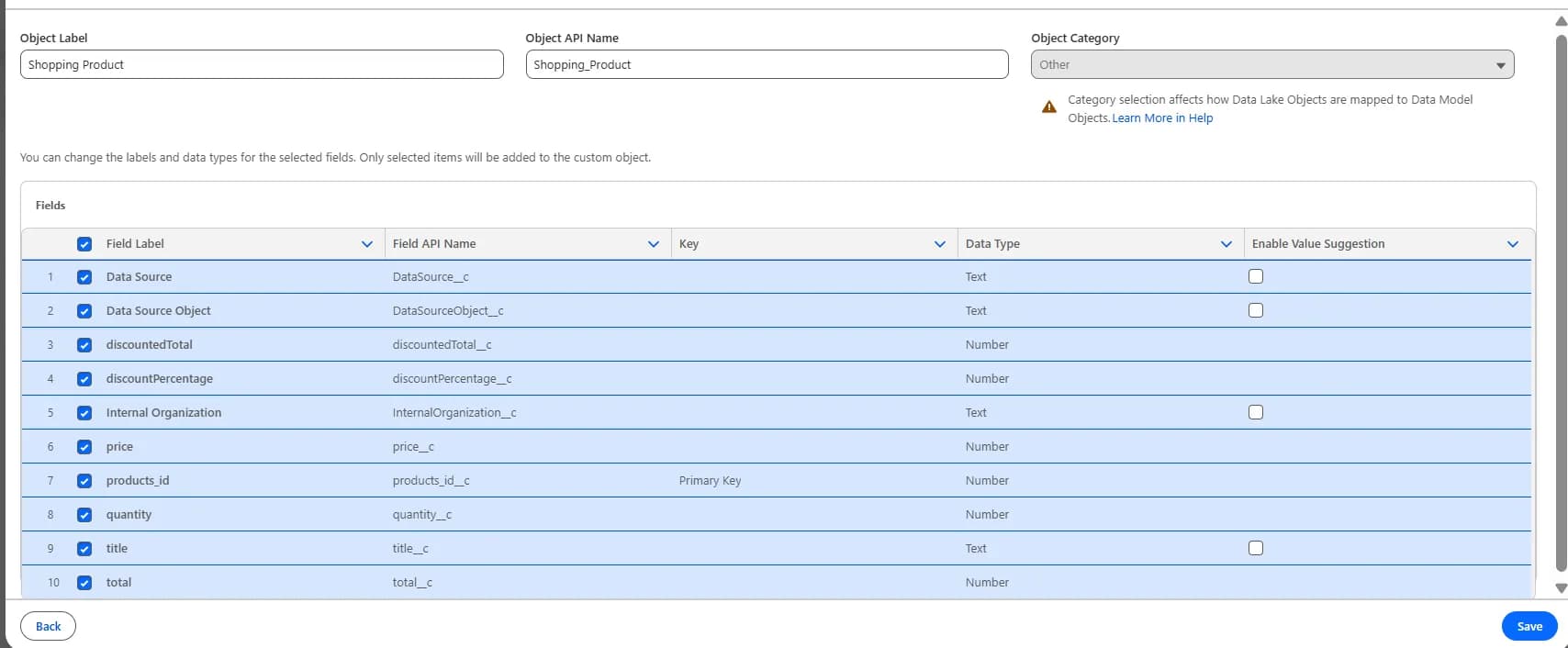
- Click on Save
- Now Mappling will look like this
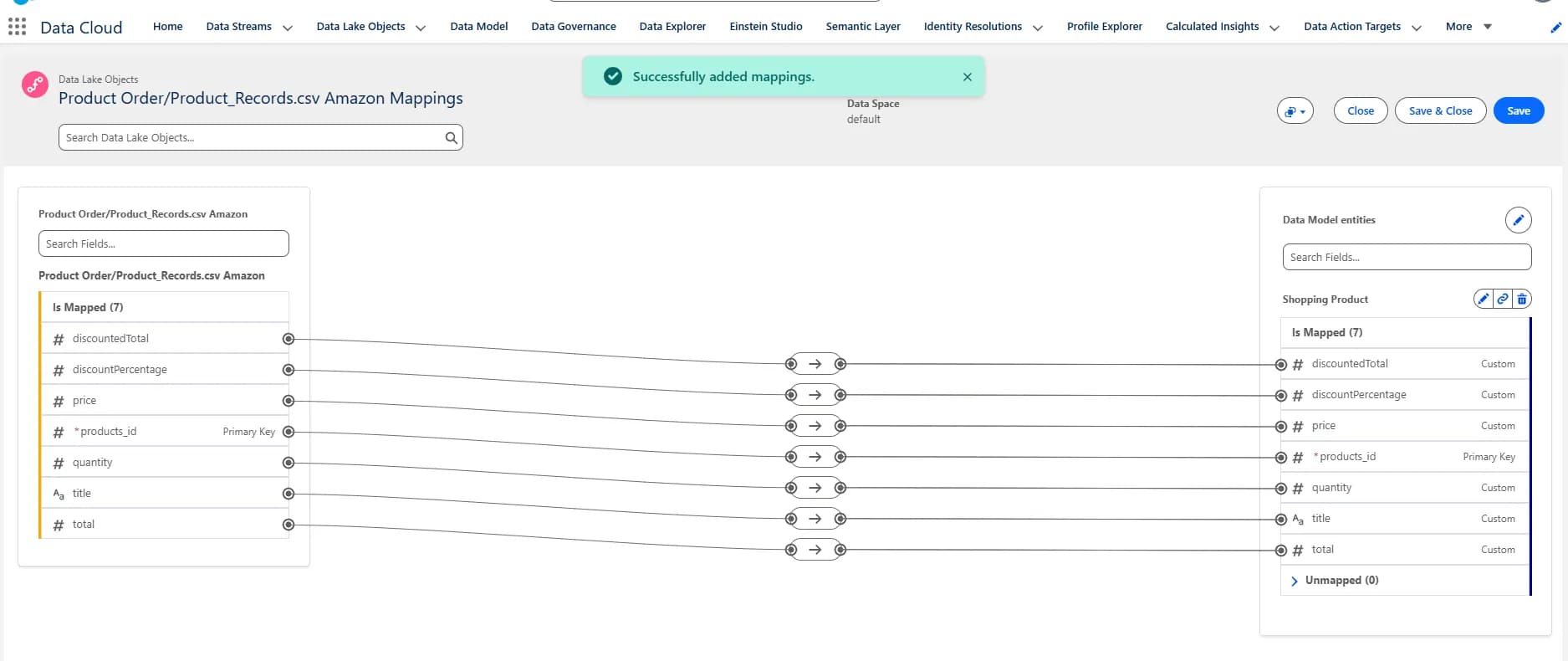
- Let's execute the SOQL query for Shopping Product object
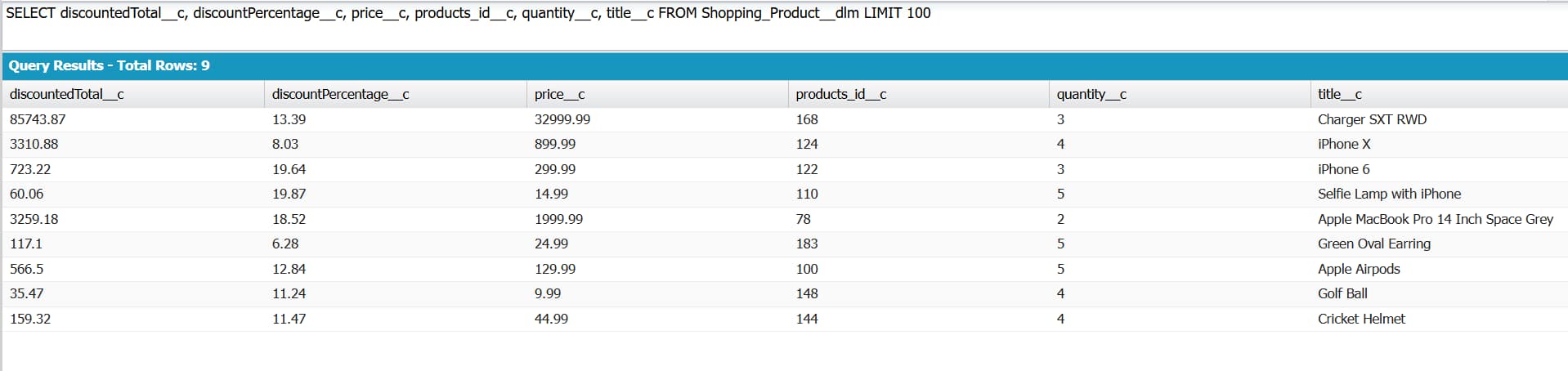
- Go to the Data Explorer tab. From where you can see Shopping Product table
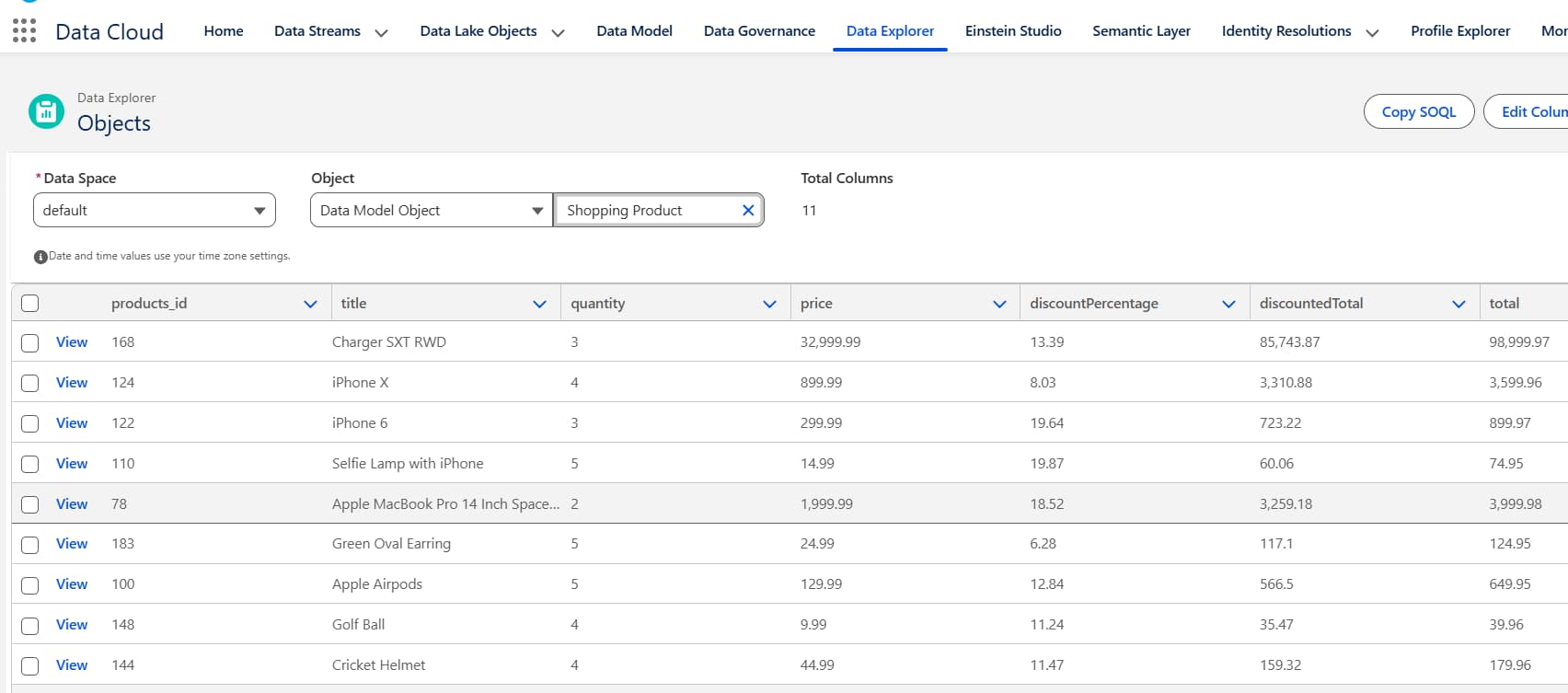
Create Flow to use in Agentforce
- Go to setup and Search for Flow
- Click on New Flow button and Select Autolaunched Flow (No Trigger)
- Create these below variable:(Make sure Availability Outside the Flow should be Available for input for productId and title. And apart from these 2 fields we have to make Available for output for others variable)
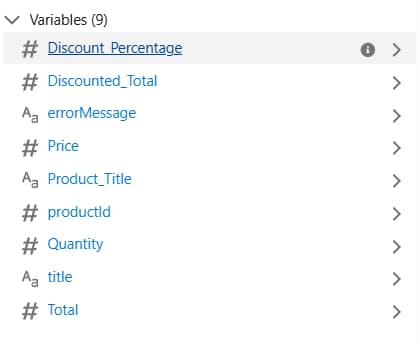
- Select Get element add Following details
- Label: Get Product Items
- API Name: Get_Product_Items
- Data Source: Data Cloud Object
- Data Space: default
- Object: Shopping Product
- In Filter Records - Condition Requirements:
- Field -> title Operator -> Equal Value -> title
- Field -> products_id Operator -> Equal Value -> productId
- How many Records to Store: Only the first record
- How to Store Record Data: Automatically store all fields
- Select Decision element and fill following details as mentioned in image.
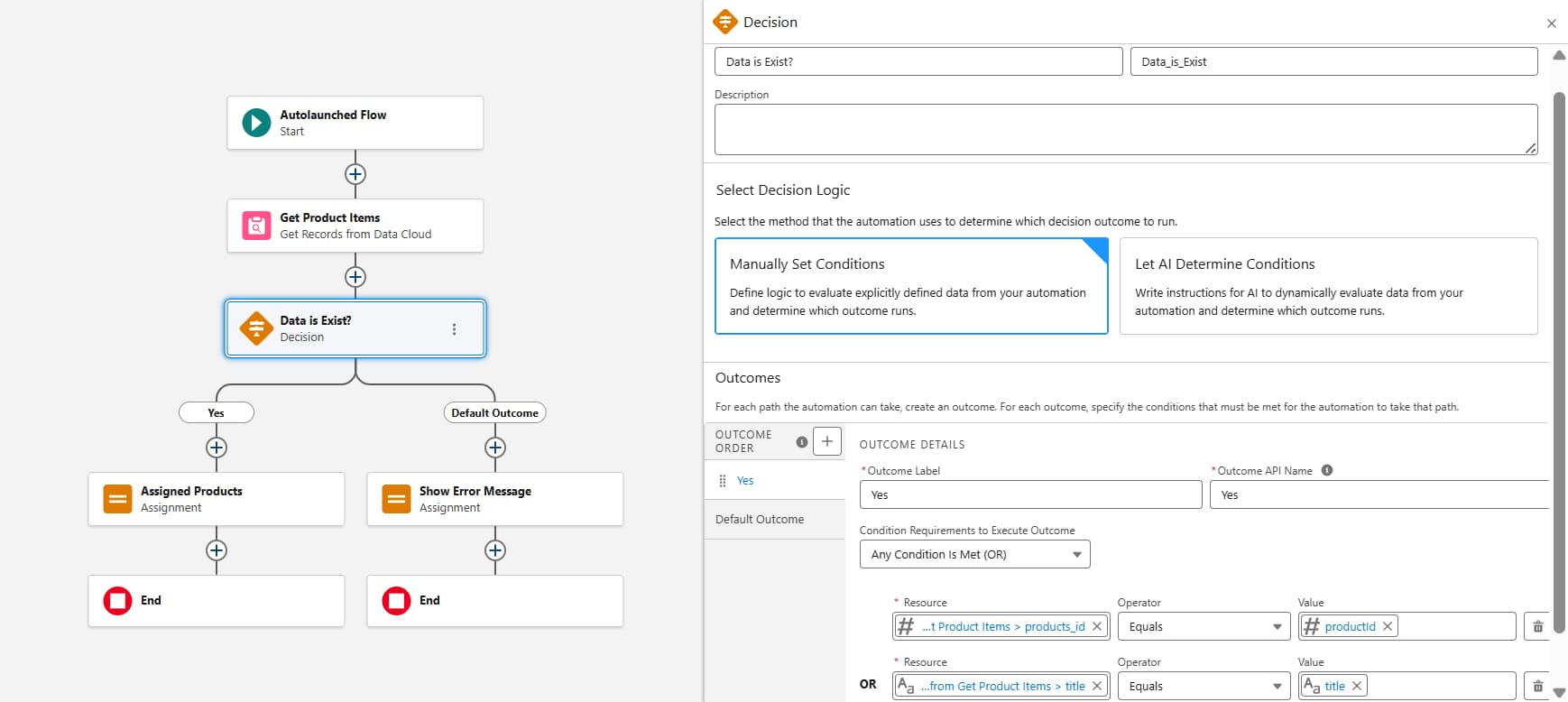
- Select Assignment element for Assigned Products and fill following details as mentioned in image.
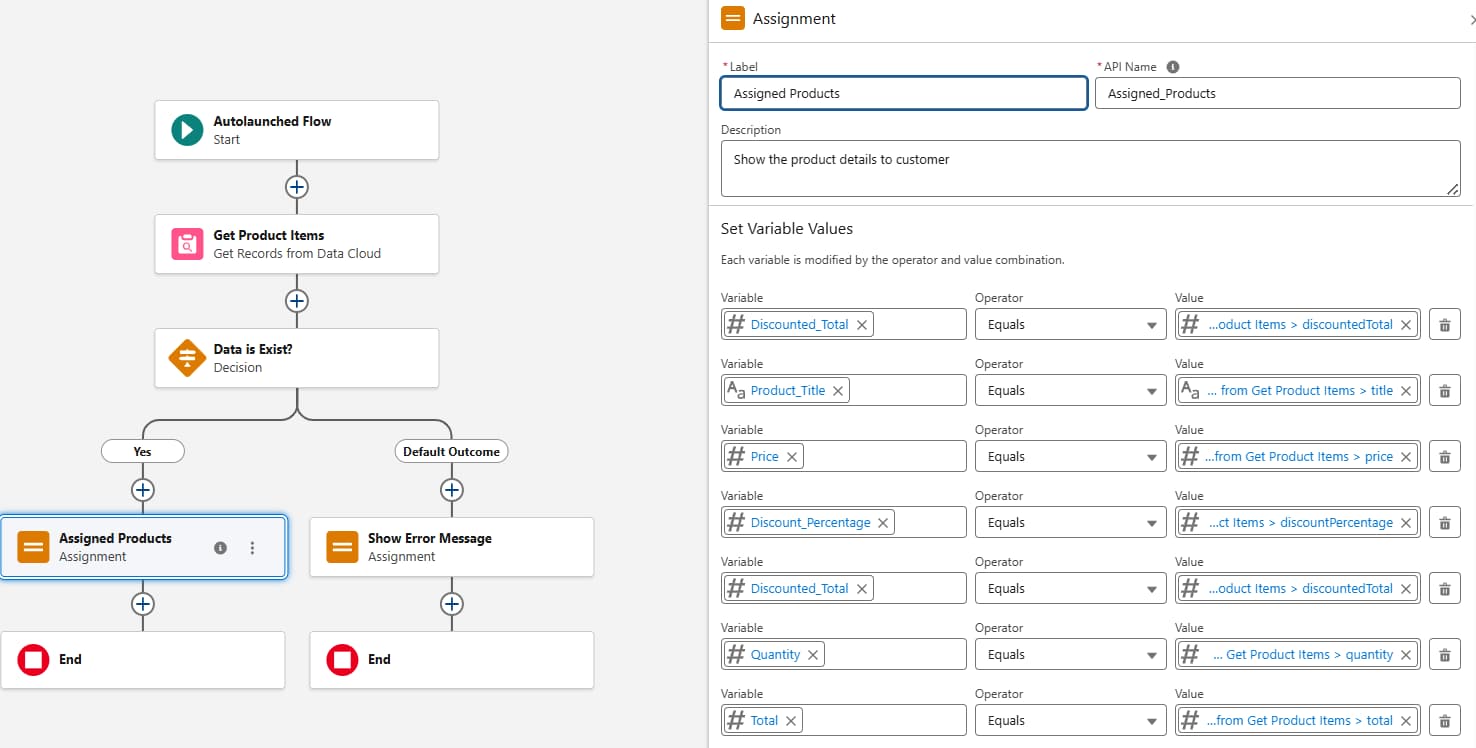
- Select Assignment element for Show Error Message and fill following details as mentioned in image.
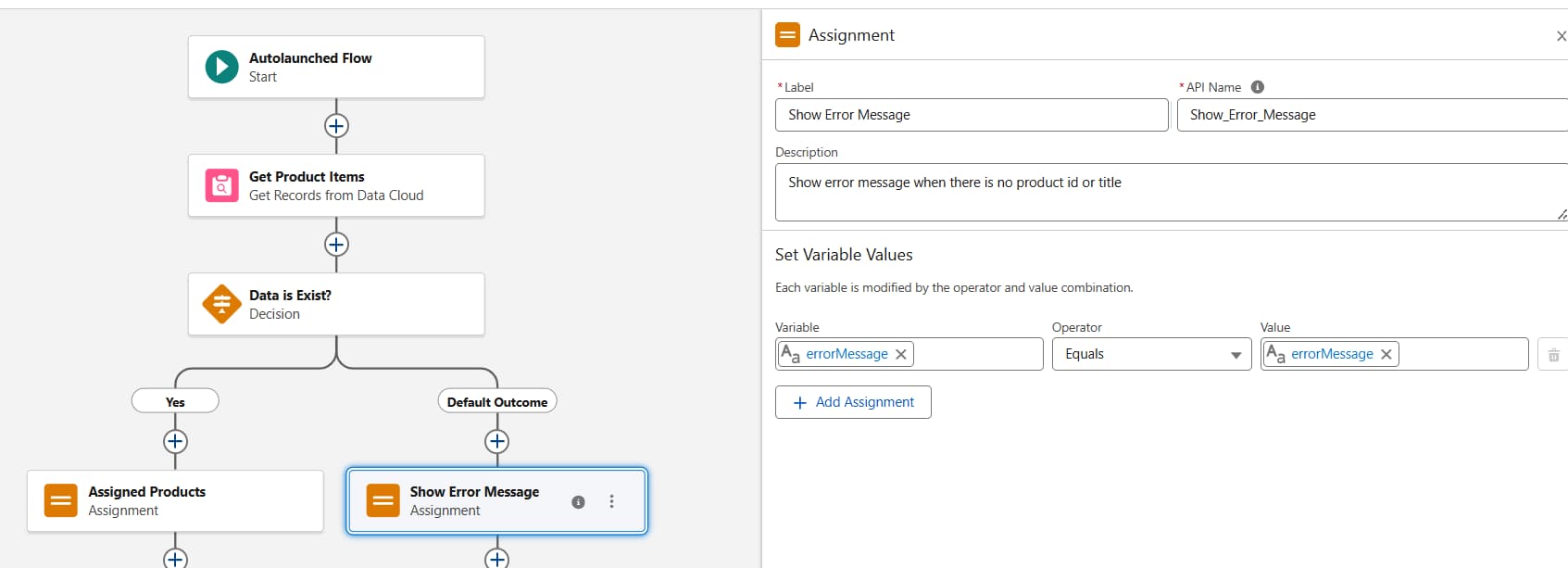
- Click on Save and give name External Product Data Cloud Flow