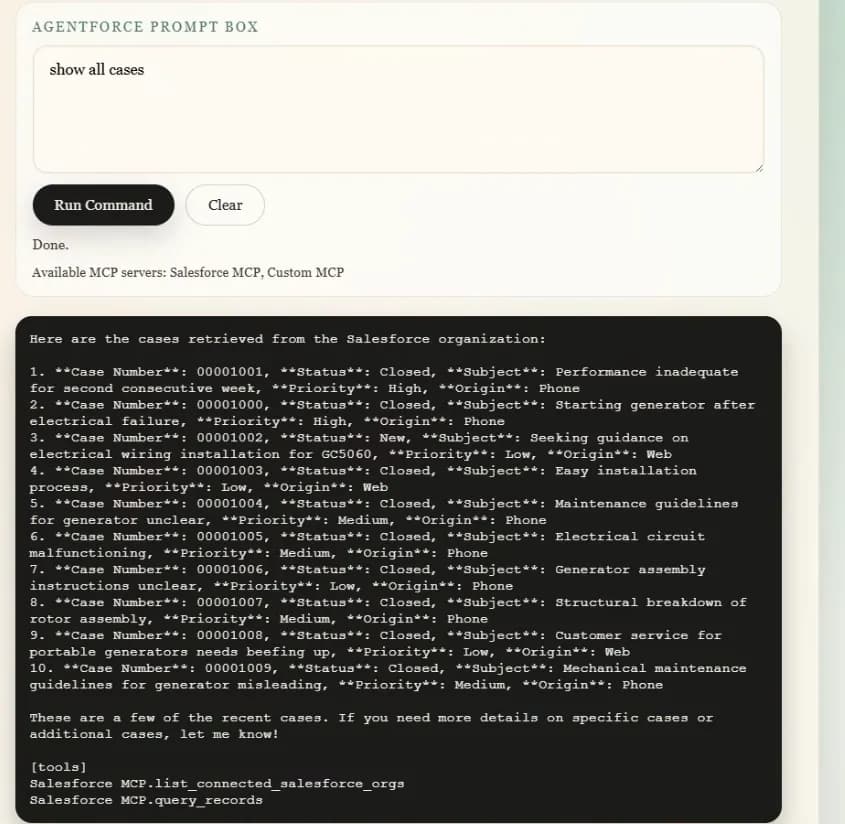
UI to Call MCP Tools From Multiple Servers
This blog provides a small web UI that can call MCP tools from multiple servers (Salesforce MCP and a custom stdio server) and display results.
We confirmed there are two MCP servers configured in .vscode/mcp.json:
- Salesforce MCP: runs npx @advanced-communities/salesforce-mcp-server
- Custom MCP: runs node server.js from my-mcp-server/
Follow the steps to create a UI for command execution:
- In my-mcp-server, Execute the following command:
mkdir public
cd public
-
Create an index.html file in my-mcp-server/public/index.html
- Paste the following code index.html in index.html file.
-
Now, Create another file named ui-server.js inside my-mcp-server directory.
- Paste the following code ui-server.js in ui-server.js file.
-
Also, Update server.js file server.js with this code.
-
Finally, Update scripts part in package.json in mcp/my-mcp-server/package.json with the following code:
"scripts": {
    "start": "node server.js",
    "test": "echo \"Error: no test specified\" && exit 1",
    "ui": "node ui-server.js"
What changed?
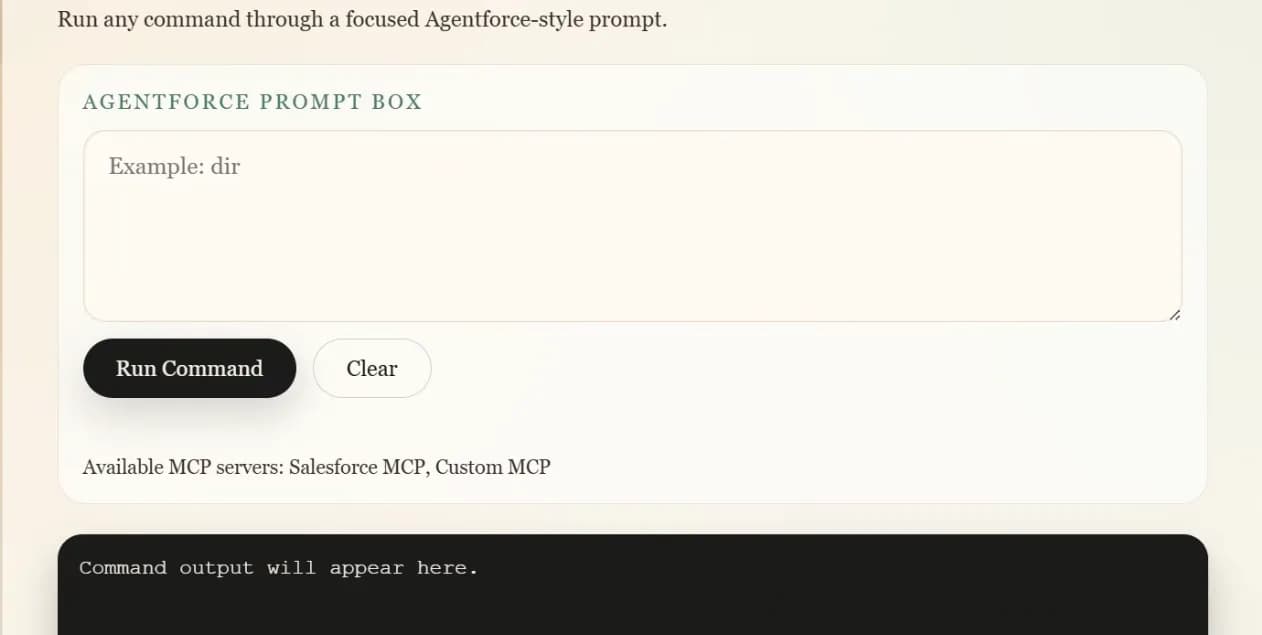
Added a small Express UI inside the existing MCP server so the Agentforce-style prompt runs locally and posts to a guarded /api/run endpoint; this keeps the MCP stdio server intact while serving the UI from index.html and wiring command execution in server.js. The UI is a bold, non-default typographic layout with gradient atmosphere and a single prompt box that calls the local runner
Details:
- server.js now starts an Express server, serves public/, exposes GET /api/allowed and POST /api/run, and restricts execution to an allowlist while blocking chaining characters.
- index.html renders the Agentforce prompt box, loads allowed commands, and shows output/errors. Notes:
- Port defaults to 3000 and can be set with PORT.
If you want to try it: Start the server and open it in your browser.
Commands:
npm --prefix my-mcp-server start
Then visit http://localhost:3000. If you set PORT, use http://localhost:PORT (PORT between <>) instead.
Wiring a GPT-backed /api/agent route that automatically selects and runs tools from your MCP servers
To make that single prompt box drive MCP tools, you need a backend “agent” to interpret the text and choose which MCP tool to call. That typically means an LLM (OpenAI/Anthropic/etc.) or a fixed rules mapping.
Depends on what do you want?
- LLM-backed (natural language like “show open cases” → picks the right MCP tool). Just tell the provider and where the API key lives.
- No LLM: a simple command map (e.g., “show open cases” → call getObjectFields or a specific tool you choose).
Quick clarifications before you change code: